How to Download Subtitles Free and Use Generators in 2026
A mistimed subtitle track does not just annoy the viewer; it actively breaks comprehension. When a caption appears even half a second before the speaker's mouth moves, the brain splits its attention between reading the spoiler and waiting for the audio to catch up. The mechanics of syncing text to speech have become more accessible, but the tolerance for error has shrunk. If you are looking to download subtitles free for a project, or relying on automated transcription to make corporate media accessible, the barrier is no longer finding the software. The barrier is ensuring the resulting text aligns perfectly with the frame rate, matches the context of the spoken word, and meets current accessibility standards without requiring hours of manual adjustment.
Quick Summary
Navigating subtitle generation and acquisition requires understanding file formats, frame rates, and accessibility standards. This guide details how to source, generate, and synchronise captions for video content without relying on expensive proprietary software.
- Match your video's exact frame rate before applying any downloaded subtitle file to prevent progressive sync drift.
- Automated generators struggle with overlapping dialogue and technical terminology; budget time for manual correction.
- Standard SRT files lack positioning data, requiring WebVTT for complex, multi-speaker accessibility requirements.
- Human oversight remains mandatory for legal, medical, or highly technical content where mistranslation carries liability.
Table of Contents
- What to know before you download subtitles free
- Step 1: Auditing your source media and frame rate
- Step 2: Using a free subtitle generator for custom media
- Step 3: Aligning timing and correcting progressive drift
- Step 4: Formatting for professional accessibility standards
- Common Pitfalls and Troubleshooting
- FAQ
- Recommended Reads
What to know before you download subtitles free
Before pulling files from open repositories, you must establish exactly what type of text track your audience requires. Grabbing the first file that matches your video title is the fastest way to ruin playback. The subtitling meaning extends beyond simple translation; it involves mapping dialogue, tone, and pacing onto a visual medium. Standard subtitles assume the viewer can hear the audio but cannot understand the language. They transcribe dialogue and ignore everything else.
Conversely, understanding sdh subtitles meaning (Subtitles for the Deaf and Hard of Hearing) is critical for accessibility compliance. SDH tracks include non-dialogue audio cues - doors slamming, off-screen laughter, the tone of background music - and identify speakers who are not currently visible. If you are preparing video for a government or healthcare audience, standard subtitles are insufficient. You must source or generate SDH files. Open-source databases often mix these up, labelling standard translations as SDH or vice versa. Always open the raw text file in a basic text editor to verify whether audio cues are present in brackets before attaching it to your media.
Step 1: Auditing your source media and frame rate
The most critical failure point in captioning happens before you touch a text file. Video files operate at specific frame rates - typically 23.976, 24, 25, or 29.97 frames per second. Subtitle files map text to timestamps. If you apply a 25fps subtitle track to a 23.976fps video, the text will start perfectly synchronised and slowly drift out of alignment, becoming unreadable by the end of a ten-minute clip.

Begin by checking your video's metadata. On Windows, right-click the file, select Properties, and check the Details tab. On macOS, use Get Info. Write down the frame rate. When you search for a free download subtitles repository, you must filter by this exact frame rate. Do not assume that a file matching your video's runtime will align. A PAL (25fps) release of a broadcast differs fundamentally from an NTSC (29.97fps) release. If you skip this audit, you will spend hours manually shifting timestamps in a subtitle editor, trying to fix a structural mismatch that could have been avoided.
Step 2: Using a free subtitle generator for custom media
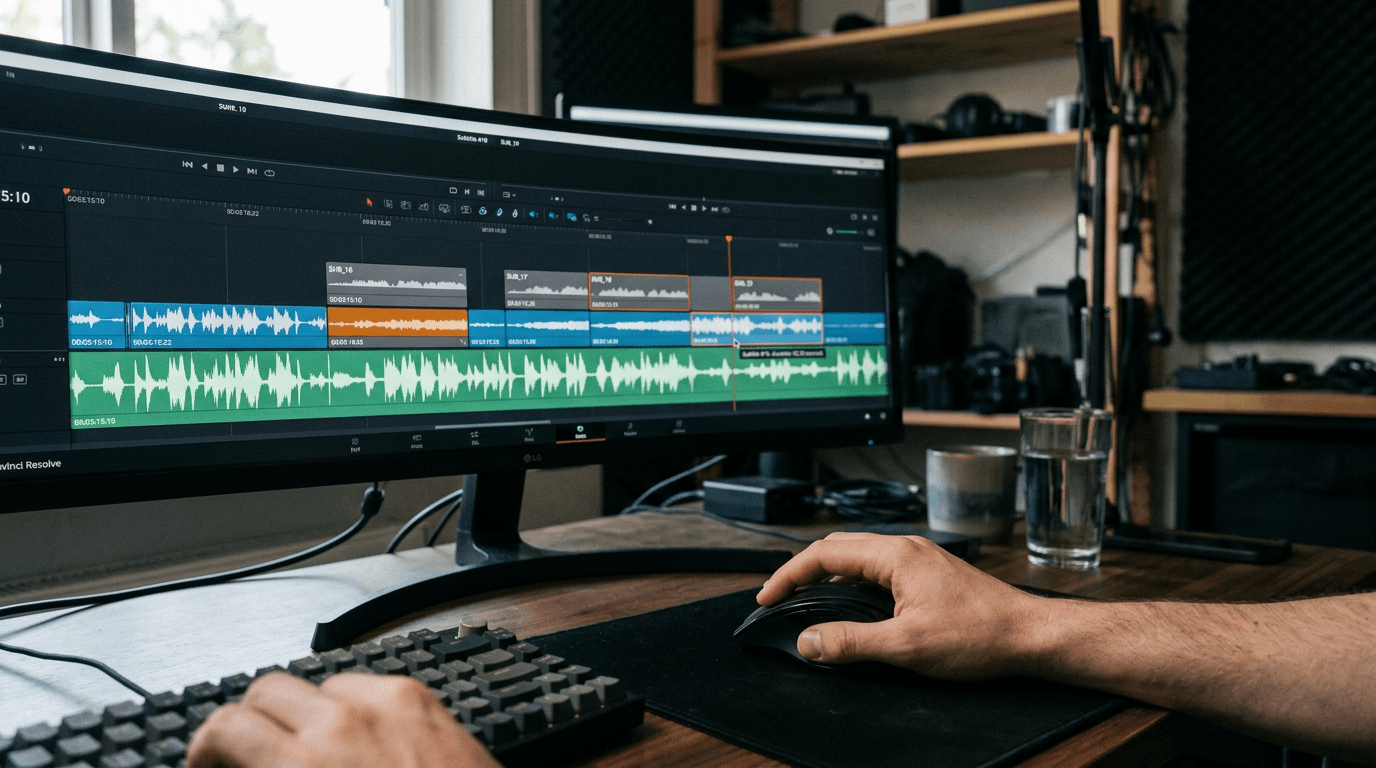
When working with original corporate presentations, training videos, or unreleased content, pre-existing files do not exist. You must create them. A free subtitle generator leverages automated speech recognition (ASR) to transcribe audio and assign rough timestamps. Tools powered by Whisper AI or integrated into modern video editors like DaVinci Resolve can handle this efficiently, but they are not hands-off solutions.
First, isolate your audio track. Generators process clean, uncompressed WAV files far more accurately than highly compressed MP4 video files. Strip the audio and upload only that track to the generator. This reduces processing time and often bypasses file size limits on web-based tools.
Second, configure the language model. If your speaker has a strong regional accent or uses heavy industry jargon, generic English settings will fail. Some generators allow you to input a custom glossary; use this for acronyms and product names. Once the tool outputs an SRT file, do not immediately hardcode it into your video. The timestamps will be mathematically accurate to the start of a word, but they will not account for shot changes or natural reading rhythm. You will need to bring the SRT file into a dedicated editor to clean the formatting.
Step 3: Aligning timing and correcting progressive drift
Applying the generated or downloaded text track to your video requires a dedicated subtitle editor, such as Subtitle Edit or Aegisub. Import your video, and then drag the SRT file into the workspace.
Check the first line of dialogue and the last line of dialogue. If the first line is accurate but the last line is delayed by several seconds, you have a frame rate mismatch (progressive drift). Most editors have a "Synchronisation" or "Adjust all times" function. You calculate the percentage difference between the correct end time and the current end time, and apply that ratio across the entire file.
Practical rule: Never allow a subtitle to cross a hard cut in the video editing. A caption should disappear exactly on the frame the camera cuts to a new angle, and the next caption should appear a few frames later. Text bleeding across visual cuts confuses the eye and disrupts the viewing experience.
If the text drifts inconsistently - syncing, then falling behind, then syncing again - your video file likely has variable frame rate (VFR), often caused by smartphone recording. Subtitle editors rely on constant frame rates. You must use a tool like Handbrake to transcode your video to a constant frame rate before attempting to sync the text.
Step 4: Formatting for professional accessibility standards
Accessibility guidelines dictate how text appears on screen, not just what it says. The standard SRT file format is essentially a glorified text document. It contains a sequential number, start and end timecodes, and the text itself. It cannot control where the text sits on the screen. If your video features lower-third graphics or critical visual information at the bottom of the frame, an SRT file will blindly print text right over it.
To meet professional standards, you must convert the SRT to WebVTT or SSA/ASS formats. WebVTT allows for basic positioning metadata, enabling you to move captions to the top of the frame when a lower-third appears.
Furthermore, adhere to character limits. The industry standard is a maximum of 42 characters per line, and no more than two lines per subtitle block. Text should remain on screen for a minimum of 1.5 seconds and a maximum of 7 seconds. Reading speeds should not exceed 15-17 characters per second for adult audiences. If your generator creates a block of text that lasts 2 seconds but contains 60 characters, the viewer will not finish reading it. You must manually split that block into two separate captions.
For organisations handling sensitive communications, automated tools represent a liability. While software can align timestamps, ensuring nuanced cultural and professional accuracy across languages is a different requirement. Organisations navigating this gap often rely on platforms like the Lingua Franca Hub | On-Demand Interpreting Services to provide the human oversight that algorithms currently lack.
Common Pitfalls and Troubleshooting
Diagnosing captioning errors requires looking at the timing patterns and the text encoding rather than just the visible output.
The text displays as random symbols (Mojibake)
- Symptom: Accented characters, apostrophes, or non-Latin alphabets render as boxes, question marks, or random symbols (e.g., "don’t").
- Fix: This is an encoding failure, and it is the most common issue with downloaded files. The file was saved in ANSI or a regional encoding format, but your video player expects UTF-8. Open the subtitle file in Notepad, select "Save As," and explicitly change the encoding dropdown at the bottom of the dialogue box from ANSI to UTF-8.
The text progressively falls out of sync
- Symptom: The first five minutes look perfect, but by minute thirty, the captions appear three seconds before the actors speak.
- Fix: Frame rate mismatch. The subtitle file was authored for a 24fps theatrical release, but you are playing a 25fps broadcast rip. Use your subtitle editor's frame rate conversion tool to shift the track from 24 to 25fps.
Captions flash too quickly to read
- Symptom: Blocks of text appear and disappear in a fraction of a second, usually during rapid dialogue.
- Fix: The automated generator transcribed overlapping speech verbatim without adjusting for minimum duration limits. You must manually merge these rapid-fire captions into a single, two-line block, and extend the duration so it remains on screen long enough to be read, summarising the dialogue if necessary to meet character-per-second constraints.
Video player refuses to load the text track
- Symptom: The file is in the same folder as the video, but the media player's subtitle menu is greyed out.
- Fix: Naming convention error. For local playback, the subtitle file must share the exact filename as the video file, down to the last character, excluding the extension (e.g.,
Corporate_Briefing_01.mp4andCorporate_Briefing_01.srt).
FAQ
What is the difference between SRT and VTT files?
SRT is the legacy standard, supporting only basic text and timing. VTT (WebVTT) supports styling, text positioning, and metadata, making it the required standard for modern HTML5 web video players to ensure captions do not obscure on-screen graphics.
Why does my auto-generated file miss technical terminology?
Automated speech recognition models are trained on general conversational data. They lack the phonetic context for niche industry acronyms, medical terminology, or specific brand names. These will always require manual correction or the use of a custom glossary feature if the generator supports it.
Can I embed subtitles directly into the video file?
Yes. This is called 'burning in' or 'hardcoding' subtitles. You use video rendering software to permanently write the text into the video frames. While this guarantees the text will display on any device, it removes the viewer's ability to turn the captions off or adjust their size, which violates standard accessibility guidelines.
How do I ensure data privacy when uploading corporate audio to free tools?
Most free, cloud-based generators process and store your audio on third-party servers to train their machine learning models. If you are captioning sensitive internal communications, you must read the provider's Privacy Policy | Lingua Franca Hub to understand their data retention practices, or use a local, offline generator like Whisper running on your own hardware.