How to Download Subtitles Free for Video Media in 2026
A student opens a downloaded lecture video on Monday morning, clicks the caption button, and sees nothing but a blank screen. Without an accompanying text track, that media file is functionally useless in a noisy room, for a hearing-impaired viewer, or for a non-native speaker trying to follow technical vocabulary. Knowing how to download subtitles free changes a closed video file into an accessible resource. Yet, most users assume that grabbing the first text file from a search engine will solve the problem immediately. That assumption leads directly to mismatched audio, progressively drifting text, or jarring mistranslations. Finding the file is only the first step; matching the timecodes to your specific video file is what actually makes the text usable. This guide details the exact mechanics of sourcing, synchronising, transcribing, and translating subtitle files for local media without corrupting your viewing experience.
Quick Summary
Accessing and synchronising subtitle files involves matching specific text formats to your media's exact frame rate and duration. When you download subtitles free, you must align the timecodes with your specific video release to prevent the text from drifting away from the audio track.
- Verify your video's exact frame rate before downloading any subtitle file.
- Match the release name exactly when using community subtitle databases.
- Use local auto-generation tools only as a baseline transcript, not a finished product.
- Check text alignment at both the 5-minute and 45-minute marks to properly diagnose timing errors.
Table of Contents
- 1. Download Subtitles Free by Matching the Video Release
- 2. Source Files from Regulated Community Repositories
- 3. Automate Missing Text Locally
- 4. Localise the Timecoded Text
- 5. Audit the Target Language Nuance
- Common Pitfalls & Troubleshooting
- FAQ
- Recommended Reads
1. Download Subtitles Free by Matching the Video Release
Frame rates dictate the synchronization
SRT and VTT formats are essentially plain text documents. They do not listen to your video's audio track; they simply instruct the media player to display a specific string of text at a specific millisecond. When you download subtitles free from an online database, you are downloading a rigid script tied to a very specific version of a video.
The mechanics of this synchronisation rely entirely on the frame rate. If a video file was encoded at 23.976 frames per second for a digital release, and the subtitle file was timed for a 24 frames per second European broadcast release, the text will gradually fall behind the audio. By the end of a 90-minute lecture or film, the text can drift by several seconds, rendering the captions unreadable in context.
The mistake most people make is searching only for the title of the video, ignoring the release group or container format. A "Web-DL" release often features different commercial break cuts and studio logos compared to a "Blu-ray" rip. If the video files have different runtimes, their corresponding text files will never align.
To prevent this, open your video file in your media player, navigate to the codec information panel, and note the exact frame rate and file duration. Compare this data against the subtitle file description before you download it.
Practical rule: Always check synchronization at the 5-minute mark and the 45-minute mark. If the text is perfectly timed early on but arrives visibly late later in the video, you have a frame rate mismatch, which requires converting the SRT file's timing rather than just applying a static delay.
2. Source Files from Regulated Community Repositories
Safe sources prevent malicious script execution
Because subtitle formats like SRT are just text files, they are inherently safe to download. They cannot execute code on your computer. However, the ecosystem surrounding them is heavily targeted by malware distributors. Community repositories mitigate this risk by acting as regulated clearinghouses for legitimate text files.
The safest mechanism for sourcing these files relies on hash-matching rather than text-based web searches. A media player computes a unique digital fingerprint - a hash - of your specific video file based on its size and structure. The player then queries a repository's API, asking for text files that previous users successfully paired with that exact hash. This guarantees both safety and synchronisation in a single step.
The most dangerous mistake a user can make is typing free download subtitles into a generic search engine and clicking the first sponsored result. This usually leads to downloading a bundled .zip archive that contains a disguised executable file (like .exe or .vbs) instead of a raw .srt file. Executing that file installs malware instead of loading captions.
Instead of using web browsers, use the subtitle download extension built directly into modern media players. By dragging your video into the player and clicking "Search by Hash", you bypass search engine manipulation entirely and pull only verified text documents.
3. Automate Missing Text Locally
When manual searches fail, generate your own files
For niche educational content, corporate training videos, or independent media, pre-existing text files simply do not exist on community databases. In these cases, you must create the transcript yourself using offline artificial intelligence models.
Running a free subtitle generator locally on your machine works by processing the video's audio track through a neural network - like Whisper - in 30-second sliding windows. The software transcribes the spoken words and automatically plots the exact millisecond each sentence begins and ends, outputting a fully formatted SRT file. Because these models have become highly efficient, they can run on standard consumer hardware without requiring a cloud connection.
The primary failure here is a breach of data privacy. Users often upload confidential corporate meetings or sensitive medical training videos to free cloud-based transcription websites. Those platforms frequently reserve the right to store and train their models on uploaded audio, exposing proprietary information to third parties.
Protect your data by downloading a standalone transcription application that runs on your local graphics card or CPU. Disconnect your computer from the internet before processing the video to mathematically guarantee that the transcription executes entirely on your local hardware.
4. Localise the Timecoded Text
Literal translation destroys instructional context
Having an accurate English transcript is only half the solution if the target audience speaks another language. Localising an existing SRT file requires altering the spoken dialogue while leaving the rigid timecode formatting perfectly intact.
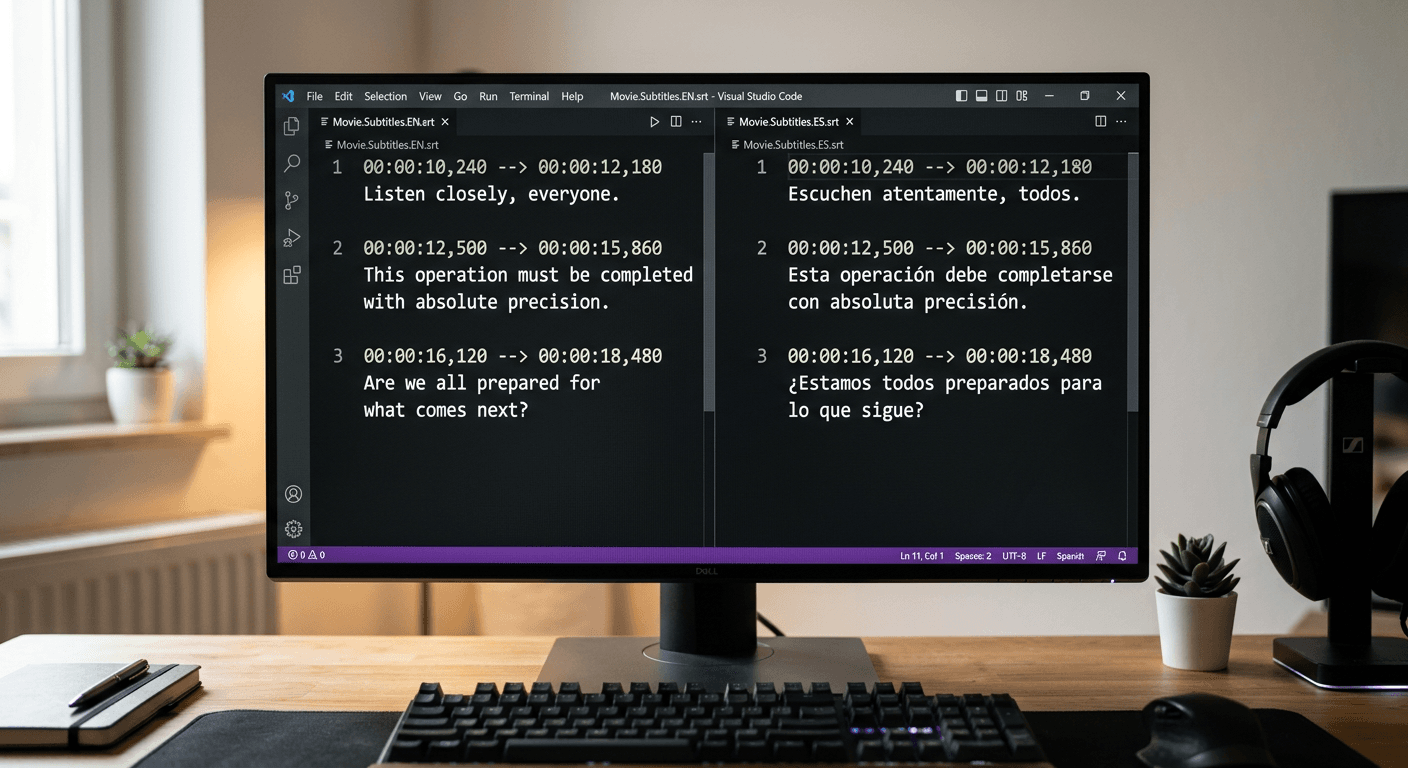
Translating timecoded text is mechanically different from translating a standard document. An SRT file relies on a strict syntax: a sequence number, a timecode string featuring an arrow (00:01:20,000 --> 00:01:22,500), and the dialogue payload. A dedicated video audio translator tool parses this document, extracts only the dialogue lines, processes them through a translation engine, and injects the new language back into the original timecode slots.
The standard mistake is opening the SRT file in a plain text editor, copying the entire document, and pasting it into a generic web translator. Generic translators attempt to translate the formatting itself. They routinely alter spacing, delete carriage returns, or change the precise --> arrow into a standard ->. This single character change immediately corrupts the file, rendering it completely unreadable to any media player.
To ensure your file remains functional, always open the translated SRT in a plain text editor before loading it into your media player. Scroll through the first few lines and confirm that the timecode arrows remain strictly formatted with two dashes and an angle bracket.
5. Audit the Target Language Nuance
Machine translations fail on dual-meaning vocabulary
Even when the timecodes remain perfectly intact, the localised text itself must be audited for contextual accuracy. Automated translation engines lack cultural awareness and situational context, defaulting to literal dictionary definitions that can confuse or mislead the viewer.
Machine models process text sentence-by-sentence, often selecting the wrong regional dialect or formal register. For instance, when requesting a translation english to urdu meaning for a casual dialogue scene, a machine will typically output a highly formal, academic register that sounds completely unnatural in context. Similarly, requesting a translation english to hindi meaning for a medical or legal video can result in literal translations of idioms - turning a phrase like "a general practice" into military terminology rather than a family clinic.
Relying on unverified machine output for high-stakes instructional or compliance videos introduces severe liability. A single mistranslated safety instruction can render the entire training module invalid.
Always have a native speaker review the generated file in a text editor. Instruct them to spot-check the highest-density dialogue scenes - usually multi-speaker arguments or complex technical explanations - to flag inappropriate registers or fatal vocabulary errors before you distribute the file to your audience.
Common Pitfalls & Troubleshooting
When text fails to render correctly over a video, users often assume the file is broken and start downloading alternatives. In reality, most issues are structural and require specific, distinct fixes.
Progressive Desync (Drift)
Symptom: The text aligns perfectly at the start of the video, but is delayed by two seconds at the 30-minute mark, and delayed by five seconds at the 60-minute mark.
Diagnosis: This is the most common real cause of failure. The video and the text file have different frame rates (e.g., matching a 23.976 fps video with a 24 fps text file).
Fix: Do not attempt to adjust the delay manually in the media player. You must stretch or compress the entire file using an online subtitle editor, converting the timecodes from the source frame rate to match your video's frame rate.
Static Offset Delay
Symptom: Every single line of text is exactly three seconds late, from the opening scene to the closing credits. The gap never widens or shrinks.
Diagnosis: The frame rates match perfectly, but the video file has a different commercial cut or opening studio logo than the version the text was timed for.
Fix: Apply a static audio delay within your media player settings (often mapped to the 'H' or 'G' keys). This shifts the display of the text forward or backward universally without permanently altering the source document.
Corrupted Character Encoding
Symptom: English words display perfectly, but accented characters, foreign alphabets, or special punctuation render as random symbols (e.g., "é" instead of "é").
Diagnosis: The media player is trying to read the text file using the wrong character encoding. The file is likely saved in ANSI format, which does not support international characters.
Fix: Open the file in a standard text editor. Select "Save As", and change the encoding dropdown at the bottom of the window from ANSI to UTF-8. Overwrite the file and reload it in your media player.
Overlapping Text Blocks
Symptom: Two lines of dialogue render on top of each other on the screen, making both completely unreadable.
Diagnosis: The timecodes in the text file are overlapping. Line 2 has an instruction to appear before the timecode for Line 1 has finished.
Fix: Open the file in a dedicated subtitle editing program and run an automated error check. The software will locate overlapping timestamps and automatically truncate the first line's end-time so the second line can display cleanly.
FAQ
Why does my media player ignore the text file entirely?
For a media player to automatically detect and load an external text track, the subtitle file must sit in the exact same folder as the video file, and the file names must match perfectly, character for character (e.g., lecture_01.mp4 and lecture_01.srt). If the names differ, you must load the text manually through the player's menu.
How do you spell interpreter when searching for live translation alternatives?
People often ask how do you spell interpreter (I-N-T-E-R-P-R-E-T-E-R) when they realise machine-generated text is insufficient for their needs. However, terminology matters here: interpreters handle live, in-the-moment spoken language (like a medical appointment), whereas 'translators' or 'subtitlers' handle asynchronous, pre-recorded text. If you have a pre-recorded video, you need a translator.
What is the mechanical difference between SRT and VTT formats?
SRT (SubRip Subtitle) is a bare-bones format containing only sequence numbers, timecodes, and plain text. VTT (Web Video Text Tracks) is a more advanced format developed for HTML5 video players. VTT supports positioning data (placing text at the top of the screen), text styling, and metadata, making it vastly superior for web-based media hosting.
Can I legally modify and distribute these files?
While raw facts cannot be copyrighted, a specific transcription and translation of a creative work usually falls under the copyright of the original video owner. Modifying a file for personal, local accessibility is generally accepted under fair use provisions in Australia, but distributing modified files for commercial projects without licensing the underlying intellectual property violates copyright law.